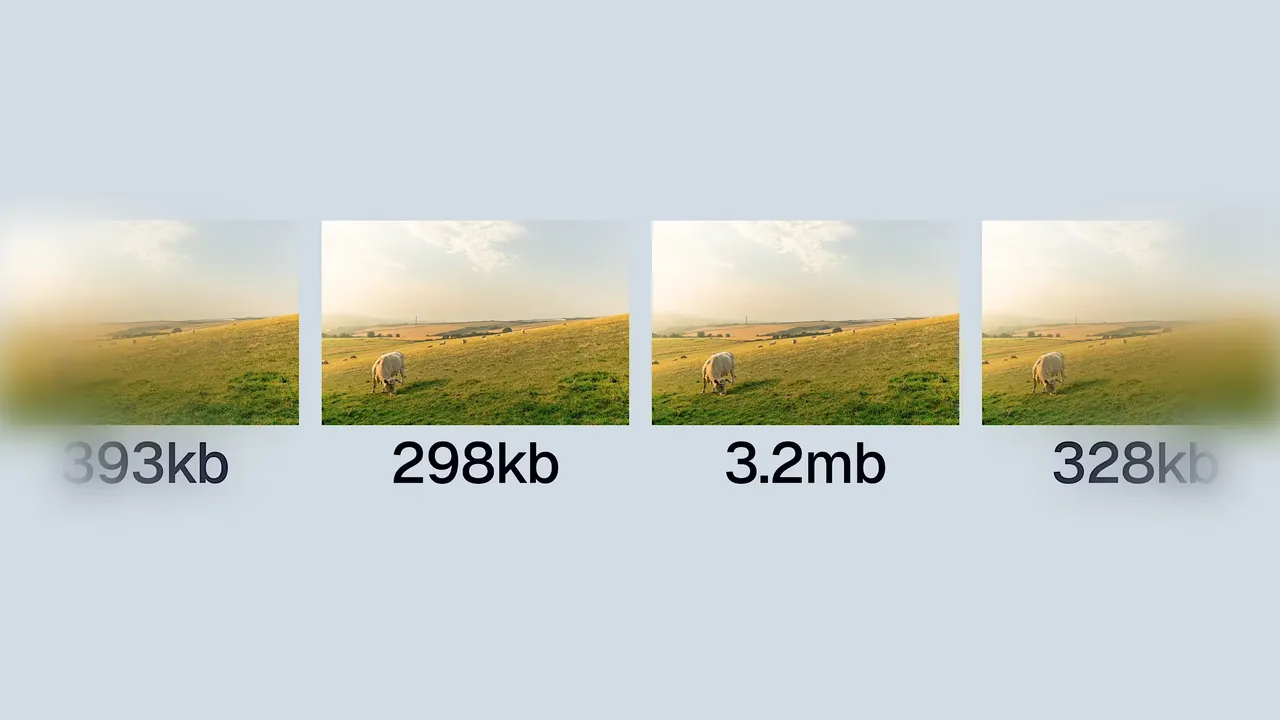
Images are usually the heaviest thing on a web page, and the easiest win: the same photo encoded as AVIF or WebP is routinely a third to a half the size of the JPEG original, with no visible quality loss. This guide covers the whole job — choosing between the two formats, converting with browser tools, command-line encoders and WordPress, and serving the new formats with safe fallbacks. Fast media directly drives Core Web Vitals and search rankings — see our complete blueprint on how to create SEO-friendly pages.
AVIF vs WebP: which one, when
The practical strategy: AVIF first, WebP as the fallback, JPEG/PNG as the last resort. Both modern formats support transparency and animation, so PNG only needs to survive for exact-lossless cases like screenshots with crisp text.
Method 1 — Browser tools (no install)
Squoosh (squoosh.app, built by the Chrome team) is the reference tool: drag in an image, pick WebP or AVIF on the right panel, set the quality slider (start at 75 for WebP, 60–70 for AVIF — AVIF holds quality at lower numbers), compare the preview, download. Everything runs locally in the browser; images are never uploaded. For a handful of images, nothing else is needed.
Method 2 — Command line (batch conversion)
For whole folders, use the official encoders. Google’s cwebp ships with the libwebp tools; AVIF encoding comes from avifenc (libavif) or via ffmpeg:
# WebP — single file, quality 80
            cwebp -q 80 photo.jpg -o photo.webp

            # WebP — every JPG in a folder
            for f in *.jpg; do
              cwebp -q 80 "$f" -o "${f%.jpg}.webp"
            done

            # AVIF — via ffmpeg, quality ~30 (lower = better)
            ffmpeg -i photo.jpg -c:v libaom-av1 \
              -crf 30 -pix_fmt yuv420p photo.avif
ImageMagick also converts both formats (magick photo.jpg photo.avif) if it was built with the right delegates — check with magick -list format | grep -i avif.
Method 3 — In your build pipeline
If images pass through a Node project, Sharp is the standard encoder and is what most frameworks use under the hood:
const sharp = require("sharp");

            await sharp("photo.jpg").webp({ quality: 80 })
              .toFile("photo.webp");

            await sharp("photo.jpg").avif({ quality: 60 })
              .toFile("photo.avif");
Next.js and Astro users get much of this automatically through their built-in image components — point them at the original and they negotiate format per browser. The manual conversion in this guide matters for static sites, WordPress media libraries and anywhere images are served as-is.
Method 4 — WordPress
WordPress accepts WebP uploads natively since 5.8 and AVIF since 6.5, and it generates the resized variants automatically — so converting before upload is the entire job: convert locally with Squoosh or the CLI, then upload the modern file directly. (If you build custom themes, see our tutorial on creating a custom WordPress theme from scratch). Converting an existing media library needs a conversion plugin (the one place a plugin is genuinely the right tool), which rewrites image URLs and serves .webp/.avif versions where the server supports it. For editorial teams, remember to pair media optimization with our step-by-step workflow on how to write SEO-friendly blog posts.
Serving them with fallbacks
The <picture> element lets the browser pick the first format it understands, in the order you list:
<picture>
              <source srcset="photo.avif" type="image/avif">
              <source srcset="photo.webp" type="image/webp">
              <img src="photo.jpg"
                   alt="Describe the image"
                   width="1280" height="720"
                   loading="lazy">
            </picture>
Always keep explicit width and height attributes (prevents layout shift) and lazy-load anything below the fold. The hero image is the exception: load it eagerly, since it is usually the Largest Contentful Paint element.
Settings cheat sheet
-
WebP quality: 75–85 for photos, near-lossless for graphics with text.
-
AVIF quality: 60–70 is the sweet spot for photography.
-
Resize first. Never serve a 4000px original into a 1280px slot — format conversion cannot fix wrong dimensions.
-
Keep the originals in a separate folder. Encoders improve every year; masters let you re-encode.
Convert at the largest size you actually display, AVIF first and WebP second, and let
negotiate. That one habit takes more weight off most pages than every other optimisation combined.